
Pay with Apple Pay
Apple Pay is a digital wallet that replaces the physical cards with an easier, safer, and more secure payment method whether - shopping in store or online wherever Apple Pay is supported globally. You can make contactless payments and enjoy all the benefits of a QNB bebasata card that has been registered on Apple devices including iPhone, iPad, Apple Watch and Mac .
Experience the benefits of Apple Pay
- Seamless Payment: Pay quickly and easily with your device.
- Global Acceptance: Accepted worldwide in stores, apps, and online.
- Security and Privacy: Protected by advanced security with every payment.
- Original Card Benefits: Keep earning your card’s rewards and perks.
How to add Card with Apple Pay
Easily set up your QNB bebasata card for Apple Pay in two simple ways.
1) Through QNB bebasata App:
Log in to QNB bebasata App on your Apple device.
- Press on Apple pay Icon from the menu on the left in the home page.
- Press “add to Apple wallet” button under the card.
- You will be redirected to Apple Pay Wallet to follow the registration steps.
- Once the card digitization steps are completed, a confirmation message will be displayed on the screen.
You are now ready to use Apple Pay
How to Add Card
2) Through Apple Pay Wallet:
- Click (+) on Apple Wallet App to add your preferred bebasata card.
- You can either scan your card using your camera or choose to enter card details manually.
- Enter the required fields to complete the registration process and read and accept the Terms & Conditions
- A confirmation SMS containing OTP will be sent to your registered mobile number.
- Once OTP is entered, the card will be added to the wallet and a SMS message will be sent to confirm that your card was added successfully.
You are now ready to use Apple Pay
How to Pay with Apple Pay
With iPhone:
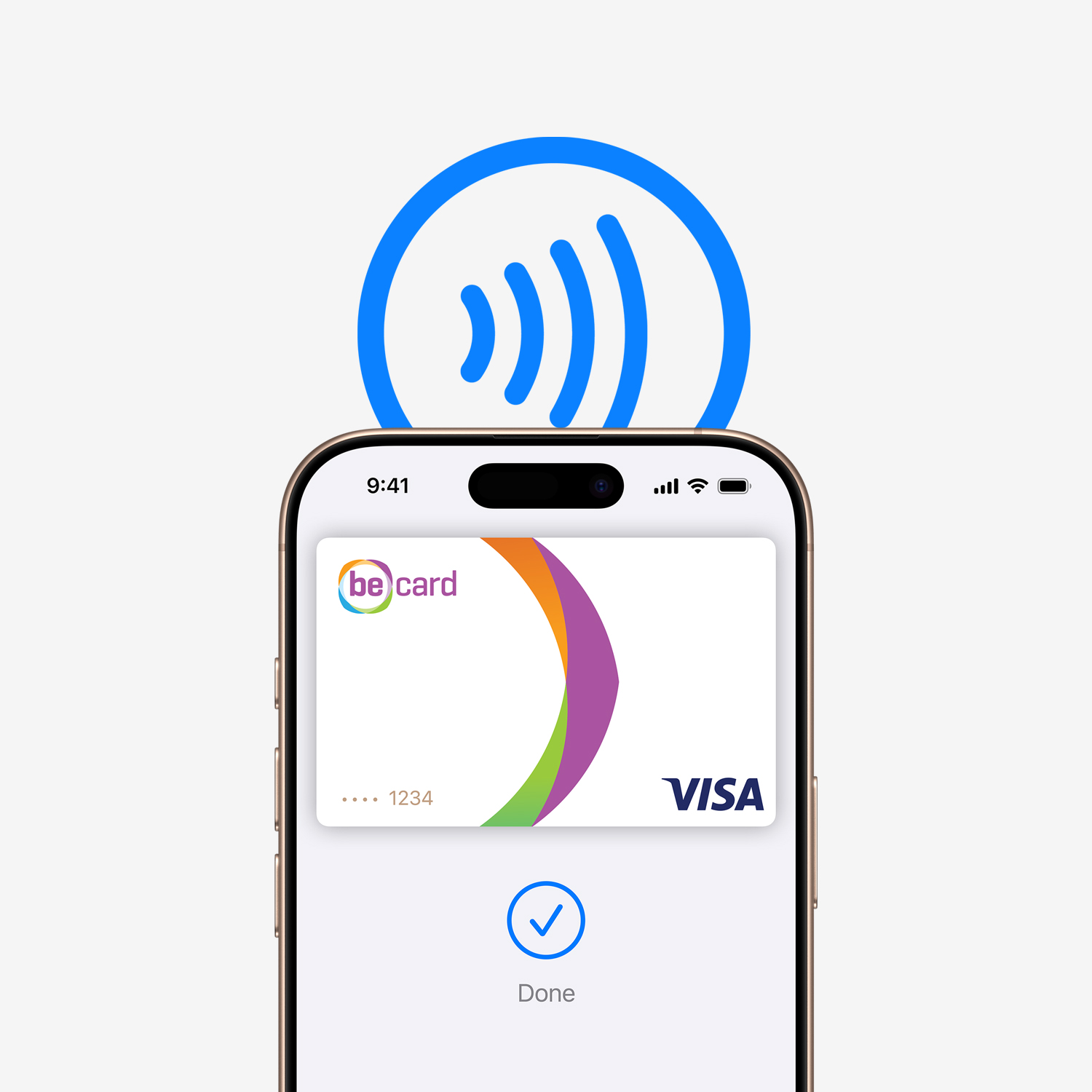
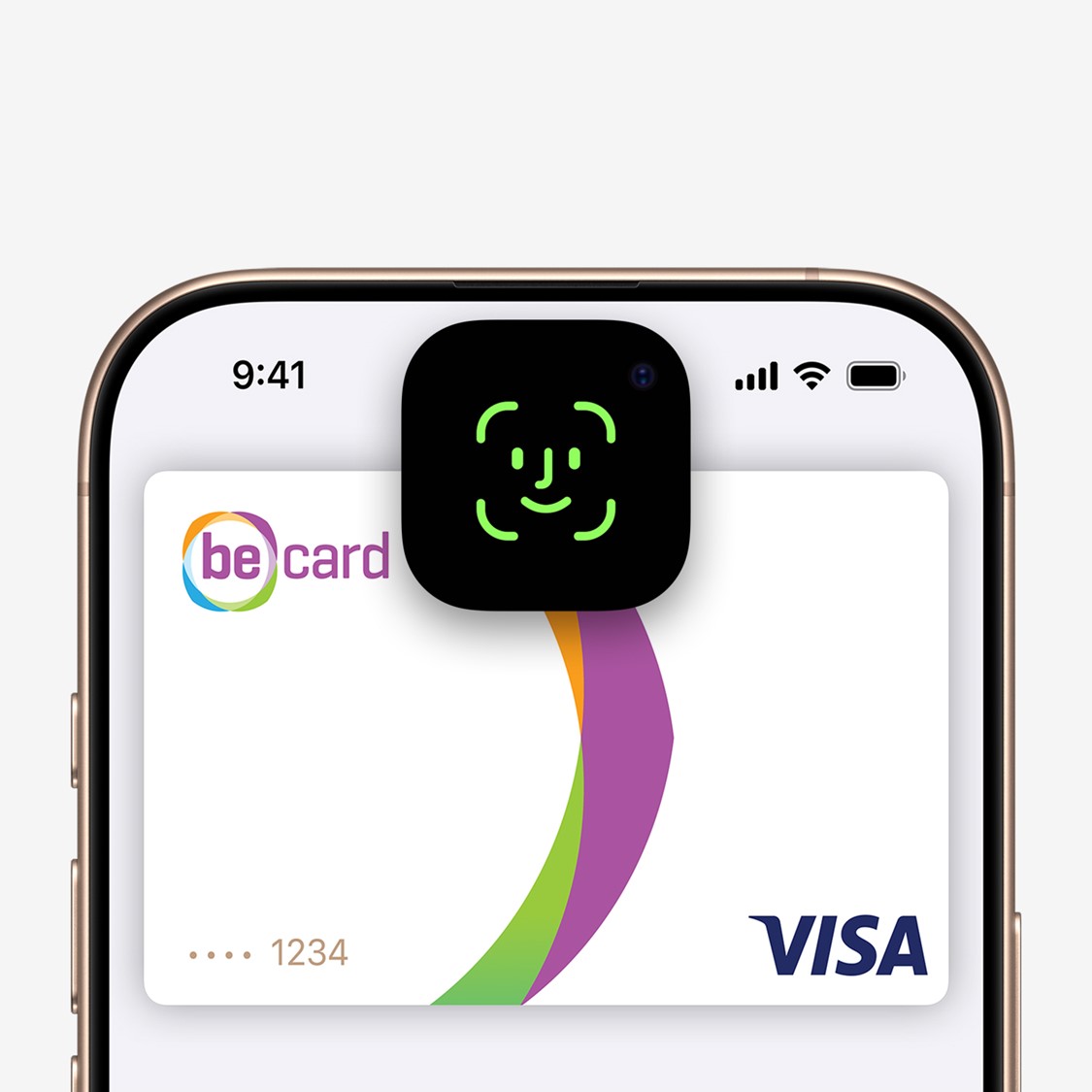
- Double-click the side button, authenticate with Face ID /Touch ID, or your Mobile passcode, then hold your device near the reader (Point of sale) to pay. You will receive a confirmation on the screen and SMS will be sent for the transaction.
With Apple watch:
- Just double click the side button and then hold your watch display near point of sale until you feel a tap.
Online or in-app:
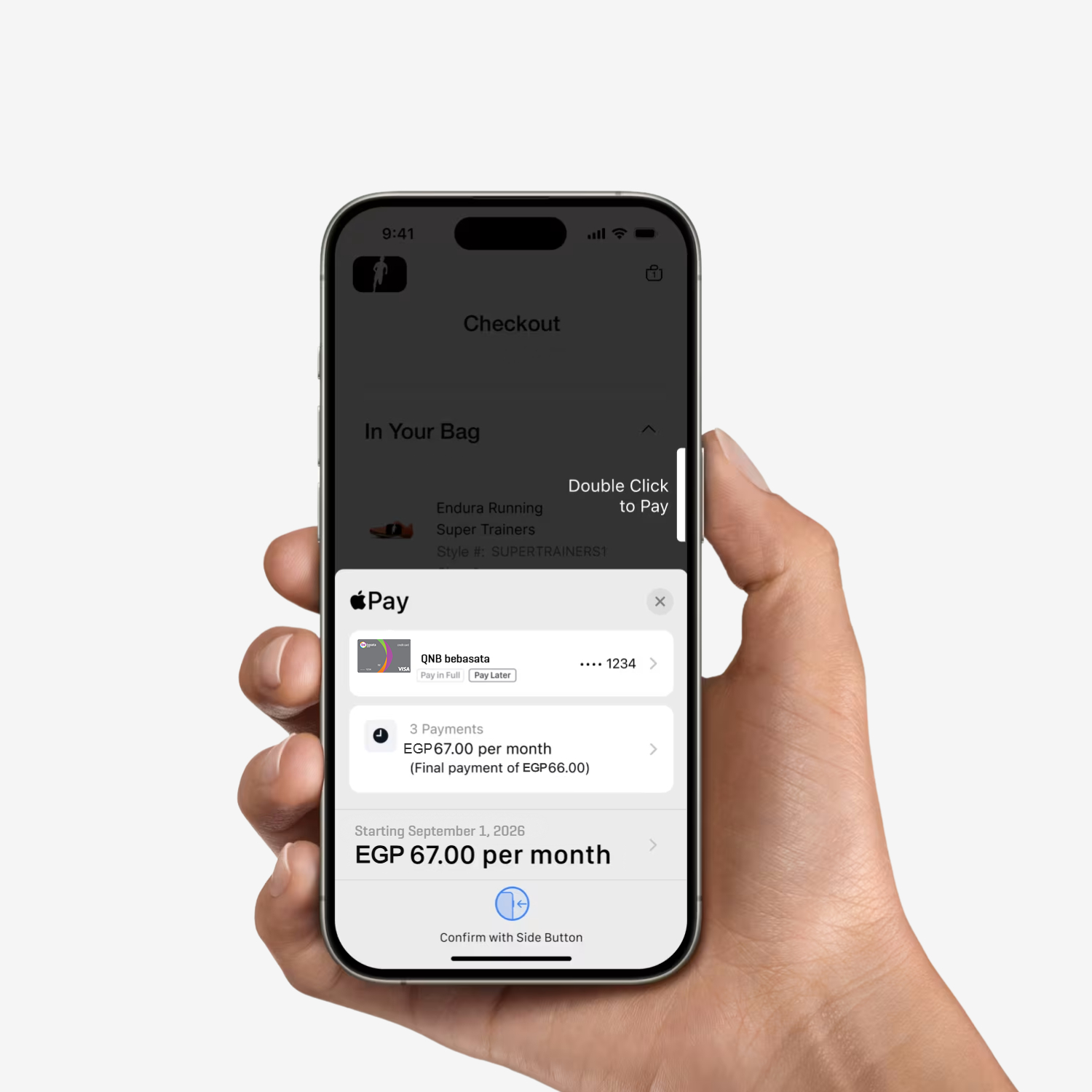
- When purchasing online or in-app, tap the button of Apple Pay, confirm your billing and shipping information, then authenticate with Face ID / Touch ID, or your Mobile passcode.
Frequently Asked Questions
-
What is Apple Pay?
Apple Pay is a digital wallet that allows you to securely store and use your QNB bebasata cards via your Apple device for contactless, in-store, online, and in-app payments.
-
How can I use Apple Pay online and in apps?
Select Apple Pay during checkout, then authenticate using Face ID, Touch ID, or your passcode.
-
Which Apple devices support Apple Pay?
- Apple Watch – Minimum watch OS version 10.5
- iPhone – Minimum iOS Version: 17.7
- Mac – Minimum macOS Version: 14.5
- iPad – Minimum Version 17.7
-
Which QNB bebasata cards can I use with Apple Pay?
All QNB bebasata debit and credit cards.